Alerts – how to set, edit and why one did not fire
A data alert, a descriptive alert and a combined alert: where the Add alert button is, how to fill the form, when we check conditions, how to pause or remove an alert and what to do when it stayed silent.
Where it is
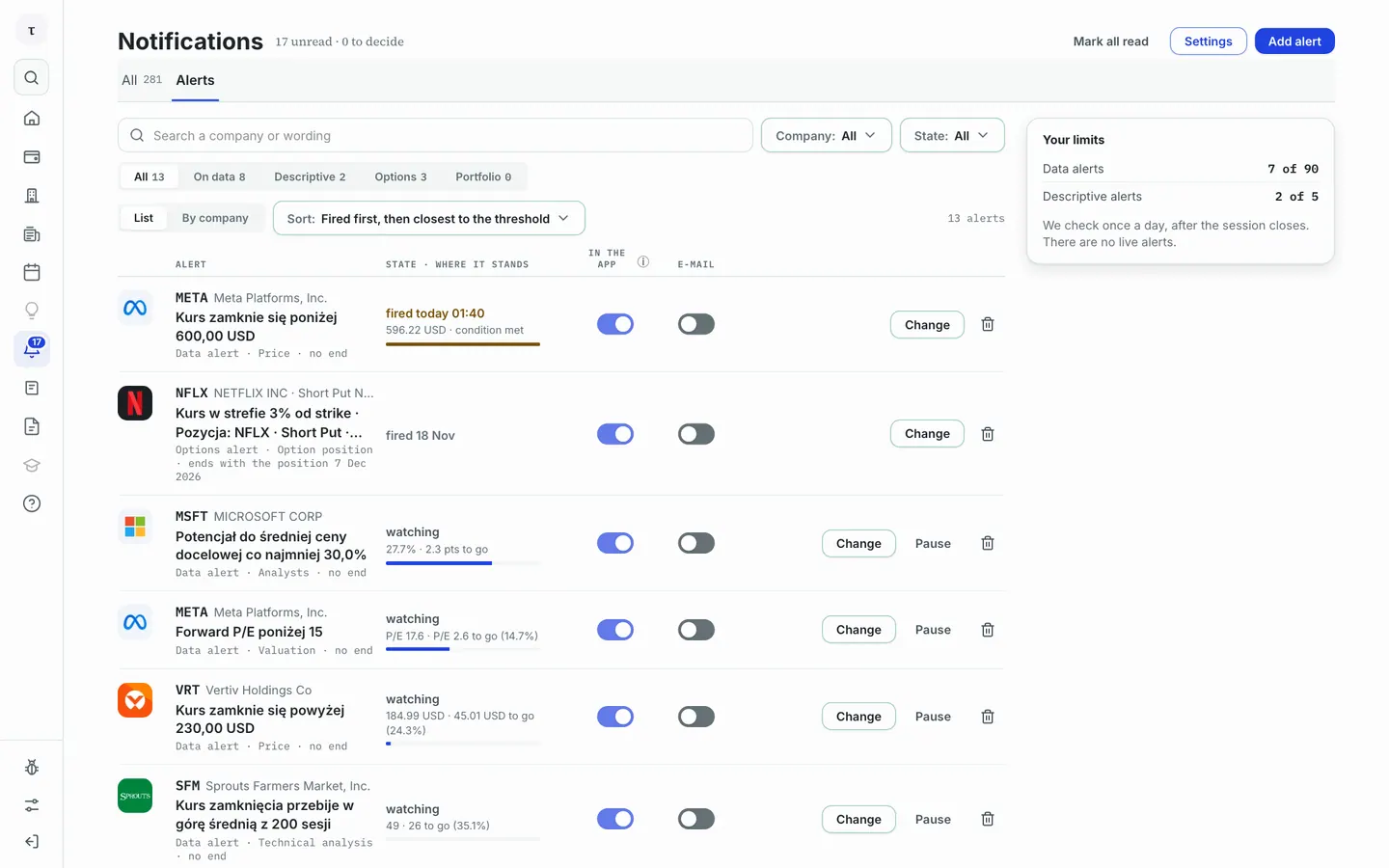
Alerts are in the notification centre (the bell in the menu), in the Alerts tab. The Add alert button is in the top right corner and the list of your alerts is below it.
 12345
Step by step
- Open the bell in the menu and choose the Alerts tab.
- Click Add alert. A window opens on the right.
- Go through the list: the Kind filters (On data, Descriptive, Options, Portfolio) and State help you find an alert.
- Each alert is one row: the company, the condition and the state it is in.
- The Your limits card shows how many alert slots you already use.
How to set a data alert
 123
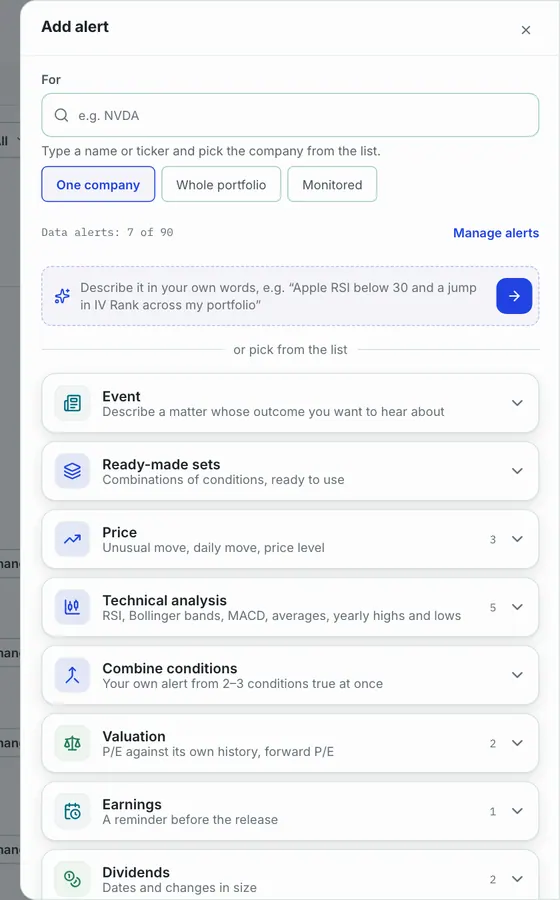
- In For choose what the alert is about: One company (type a name or ticker and pick from the list), Whole portfolio or Monitored. The last two also cover companies added later.
- You can also describe the alert in your own words in the Describe in your own words field and click the arrow.
- Or pick a kind from the list and unfold it.
 1
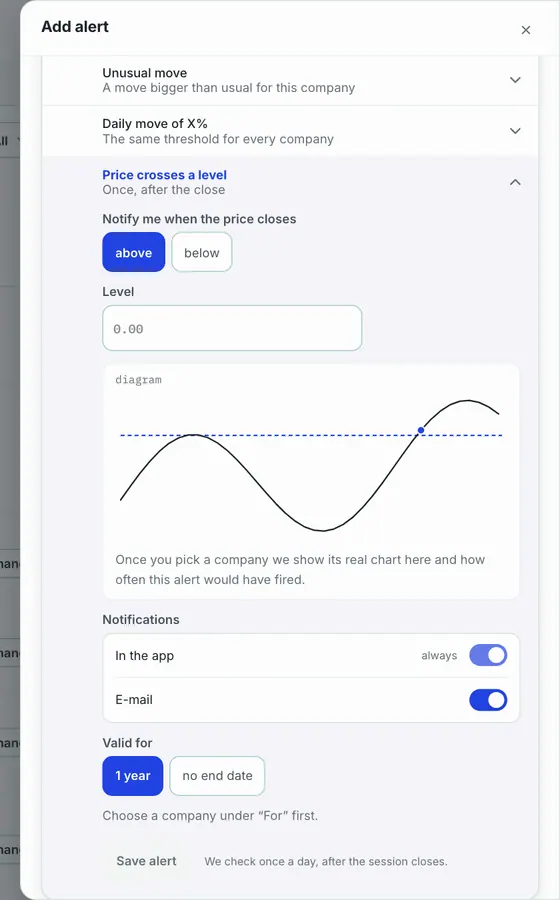
- Fill in the condition (here the direction and the level), choose Notifications (in the app is always on, e-mail is on by default and you can switch it off) and Valid for (1 year or no end date), then click Save alert. Nothing is saved until that moment.
The kinds of data alerts in the window:
- Price – unusual move, daily move by X%, price crosses a level.
- Technical analysis – RSI, Bollinger bands, MACD, moving average, yearly high or low.
- Valuation – P/E against its own 5-year history, forward P/E.
- Earnings – a reminder 1, 3 or 7 days before the release.
- Dividends – the ex-dividend date is near, a change in the dividend's size.
- Insiders and buybacks – insider purchases and sales, share buybacks (US companies only).
- Analysts – a change in rating, a change in the mean price target, upside to the price target.
- Options (US) – IV Rank, IV percentile, change in IV Rank.
Descriptive and combined alert
- Descriptive alert (the Event group): you write in your own words which matter you want to hear about, e.g. a takeover or a dispute. Before we save it we check whether it can become an alert that will ever fire – it needs a moment of resolution. It covers one company. Descriptive alerts start with the Investor plan.
- Combined alert (the Combine conditions group): your own alert from 2–3 conditions true at once. There are also Ready-made sets, combinations of conditions ready to use.
When we check
Editing, pausing, removing
 12345
- State – "watching" with how much is left to the threshold, "fired" with a date, "paused" or "expired".
- E-mail – the e-mail switch for this alert. The entry in the app is always there (the left switch).
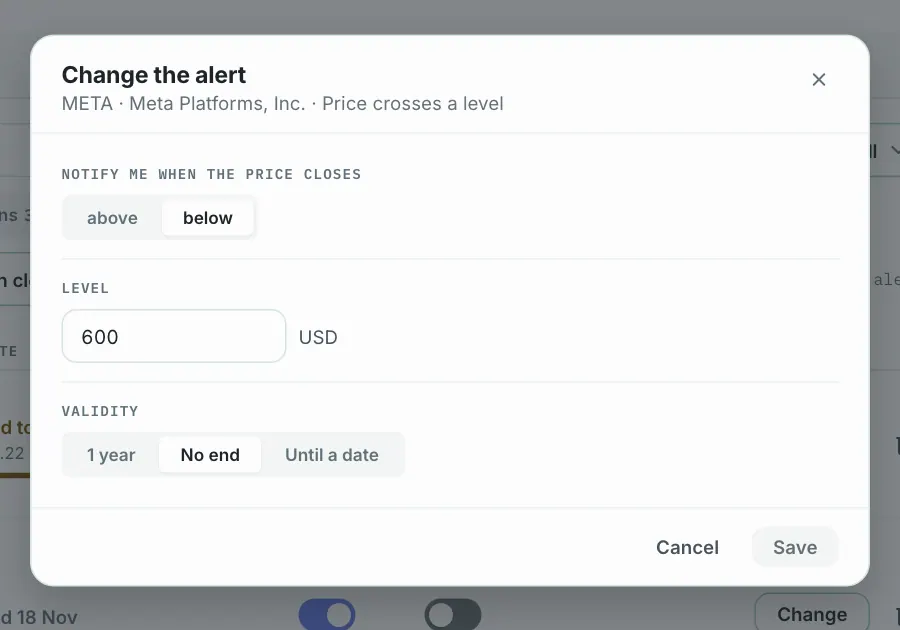
- Change – opens a window with the level, direction and validity.
- Pause – temporarily turns the alert off and frees the slot. Resume brings it back.
- Remove (the bin icon) – removes the alert, after the confirmation "Remove for sure?".
 1
An alert whose validity has ended gets the state "expired" and moves to the archive.
Why an alert did not fire
- We check once a day after the session closes – nothing arrives during the day.
- The threshold has not been reached yet: the row shows how much is left.
- The alert is paused, has expired, or has already fired and is closed.
- An alert about insiders, buybacks or options covers only the US market, and for some companies the data is not available ("this data does not cover this company").
- A descriptive alert waits for a moment of resolution that has not happened yet.
- You have more active alerts than slots in your plan – the row shows "over the plan – your call".
Frequently asked questions
Does an alert send an e-mail? The entry in the app is always there. E-mail is on by default in a new alert, and you can switch it off with the E-mail switch.
Is an alert a recommendation? No. It is a description of an indicator, not a recommendation.
Try it yourself
Follow this guide on your own portfolio
Create a free account, add a portfolio, and every screen in this guide works on your own holdings.